

How To Clear Cache In Oreo
Last Updated on March 7, 2021 by Bestusefultips
Here's how to clear app cache and data on Android 8.1 and 8.0 Oreo. You can easily clear all cache at once in your android Nougat 7.1.2 devices. But in android Oreo 8.0, you will clear cache individual apps only. This Android 8 clear cache all apps will temporarily remove app data and free up space to improve app performance in your device. Also, quickly load the app and run more efficiently in your device.
When app running background and no longer need that app, you will apply force stop or clear cache in the Oreo device. Check out below given step by step process to clear app cache in android Oreo 8.0 devices.
Read Also:
- How to clear app cache on Pixel 3a & 3a XL
- How to turn on Wi-Fi automatically in Android 8.0 Oreo
- How to force stop apps on Android 9 Pie
- How to fix android Oreo app-related issues
- How to wipe cache partition on Android Oreo
How to Clear App Cache in Android Oreo 8.0 and 8.1
This clear cache in android Oreo device will free up space in your Smartphone and improve phone performance. Apply below steps in your device.
Step 1: Go to settings in your android Oreo 8.0 devices.
Step 2: Tap Apps & notifications.
Step 3: Tap App info.
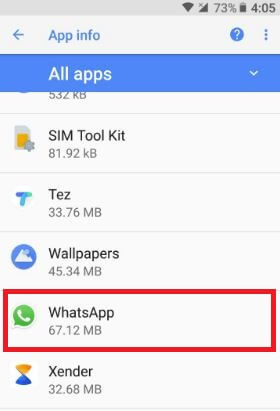
Step 4: Tap app name want to clear cache in Oreo.
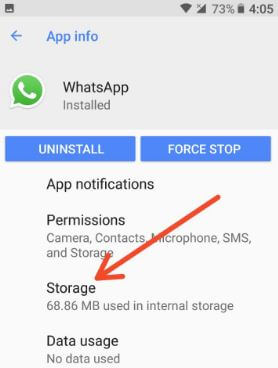
Step 5: Tap Storage.
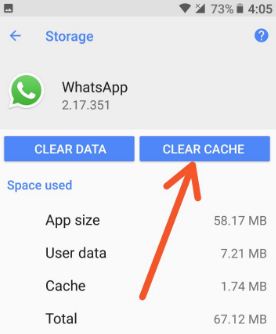
Step 6: Tap Clear cache.
Step 7: Tap Clear data.
Now clear cache data in the Android Oreo device. Also download third party applications from Google Play store to clear cache in android Oreo such as Clean Master, CCleaner, Superspeed cleaner, Speed buster, etc. These third-party apps help to remove junk, unnecessary data, and cache files.
If you're android Oreo won't turn on after charging or blank screen or freezing issues, clear system cache on android 8.0 Oreo devices.
Android 8 Clear System Cache/Wipe Cache
Step 1: Turn off your android Oreo devices.
Step 2: Press & hold the volume down button and the power button at the same time until the phone vibrates.
You can view the Android system recovery screen on the Oreo screen. By default start button view on your device.
Step 3: Press the volume down button until view recovery mode.
Step 4: Press the power button to restart into recovery mode.
You can see the above screen of the android robot exclamation mark with a red triangle logo on your phone.
Step 5: Press & hold the power button and volume up buttons one time. Now press the volume down button until highlight wipe cache partition, press the power button to select it.
This message view on your Oreo devices: Wipe all user data?
Step 6: To confirm, press the volume down button to scroll to Yes and press the power button to select it.
Clearing the cache may take 4-5 minutes.
Step 7: Press the volume down buttons to scroll to reboot system now, press the power button to select it.
Now your android 8.0 devices look like a new device recently bought.
And that's all. Did you find the above methods helpful to clear system cache and clear cache data in the Android Oreo 8.0 device? If you have any kind of trouble, tell us in below comment box. Don't miss our single android 8.0 tips and tricks.
How To Clear Cache In Oreo
Source: https://www.bestusefultips.com/clear-cache-data-in-android-oreo/
Posted by: voglnevill.blogspot.com
0 Response to "How To Clear Cache In Oreo"
Post a Comment